Build a budget website: cheapest tools & step-by-step guide

As seen in:



Top 3 cheapest website tools
-
Visit site
Test score
9.4
2026
Outstanding
-
Visit site
Test score
8.5
2026
Excellent
-
Visit site
Test score
7.9
2026
Very good

How to build a cheap website:
What costs money when creating a website — and how can you save?
A website is your digital business card and often the first thing people see when they look you up online.
That’s why a clear design and layout matter. Texts and images should be appealing, and you should also make sure basic legal and privacy requirements are met.
Even if you’re aiming for a low-cost website, cutting too many corners on quality is rarely a good idea.
So what actually makes a website expensive — and where can costs be reduced?
Main website cost drivers:
- Domain registration: The domain is your website’s address (for example, www.yourbusiness.co.uk). Costs depend on the domain extension and the registrar. In most cases, a domain costs around £10 to £40 per year.
- Web hosting: To make your website accessible online, you need hosting — essentially rented storage space on a server. Prices vary depending on performance, storage, and support. Basic hosting plans often start at around £5 per month, while high-performance or dedicated servers are significantly more expensive.
- Web design and development: If you hire professional help for design or technical setup, costs can vary widely. The final price depends on how complex your website is and which service provider you choose.
- Content creation: Writing texts, creating images, or producing videos can add up quickly, especially if you rely on professional photography or video production.
- Security and updates: A website — especially one you manage yourself — needs regular maintenance to stay secure and functional. This may involve software updates or occasional technical support, which can cause ongoing costs.
Overall, website costs depend heavily on your requirements. Small, simple projects can be kept very affordable, while larger or more complex websites can quickly become time-consuming and expensive.
Website costs by website type
| Website type | Simple website | Medium-sized website | Complex website | Blog | Online shop |
|---|---|---|---|---|---|
| Suitable for | basic content that is rarely updated | larger or multilingual content | large sites with interactive features | frequent publishing of new content | selling products and services |
| Low-cost website builder | from about £5 per month | from about £15 per month | not recommended | from about £10 per month | from about £25 per month |
| Low-cost WordPress setup | from about £5 per month | from about £10 per month | from about £35 per month | from about £5 per month | from about £20 per month |
| Low-cost professional creation | from about £650 | from about £2,200 | from about £4,500 | from about £650 | from about £1,800 |
Get a professional website at a low cost
If you want to build a budget-friendly website, there are several affordable options available. Here are some practical ways to keep costs down when creating a website:
- Use low-cost website builders: You can use website builders with affordable entry-level plans, such as IONOS, Wix or Webador. These platforms are easy to use and come with ready-made design templates.
- Use an open-source CMS: If you need more flexibility, an open-source CMS like WordPress.org can be a good option. WordPress itself is free and highly extensible, and hosting can be relatively inexpensive. However, the learning curve is noticeably steeper than with website builders.
- Domain and hosting: Look for cost-effective options for domain registration and web hosting. Competitive prices are available from various providers, including IONOS.
- Use free themes and templates: Free or low-cost website themes and templates can significantly reduce design costs. With website builders, themes are usually included in the subscription price.
- Free image editing: To create visuals or plan layouts and sitemaps, you can use free tools such as Canva.
- Use free images: Enhance your website with free stock images. Platforms like Unsplash are a popular choice. Some website builders also include large image libraries at no extra cost.
- Content creation: Write your own texts or use AI tools such as ChatGPT to help with drafting content.
- Learn SEO and marketing basics yourself: Understanding basic search engine optimisation (SEO) helps you improve visibility without extra costs. Social media platforms can also be used for low-cost marketing.
- Maintenance and support: Use online resources, forums and communities for troubleshooting instead of relying on paid support services.
By combining free or affordable tools with a willingness to handle some tasks yourself, you can create a high-quality website without overstretching your budget. A professionally designed, low-cost website — including hosting and a domain — can often be achieved for just a few pounds per month if you’re prepared to take a hands-on approach.
Tip: A website cost calculator can help you estimate how affordable a website can realistically be based on your specific requirements.
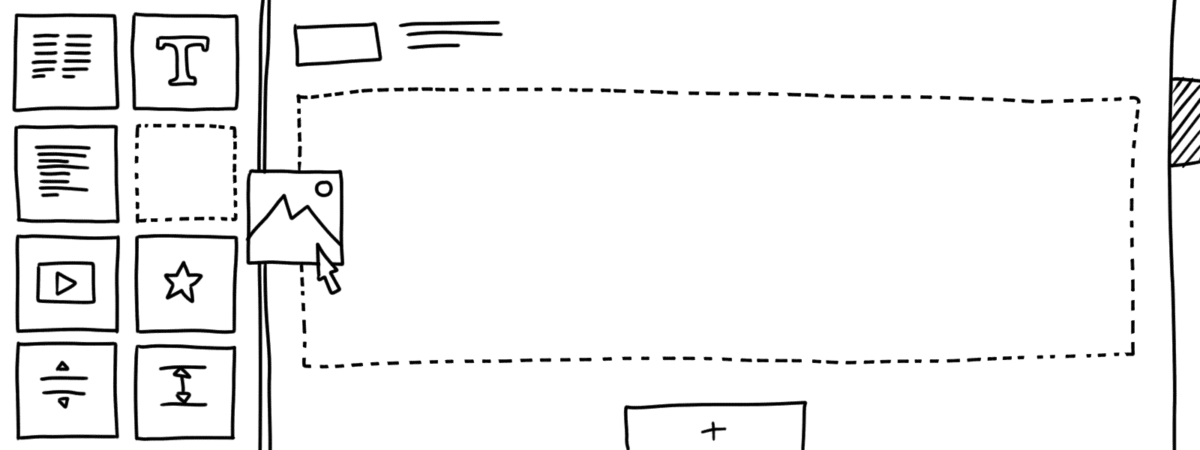
If you want to create your own website, there are essentially three different approaches you can choose from:
- Website builder: Best suited for beginners
- WordPress (or another CMS): A good choice for blogs and more complex projects
- Having a website built for you: Clearly more expensive than doing it yourself — but often cheaper than many people expect
Low-cost website builders for non-technical users
In this guide, I focus specifically on creating a website using affordable website builders.
Based on many years of experience in website creation, I’m convinced that beginners achieve the best results with this approach. With the builders presented here, you create and edit your website using drag-and-drop, simple text editing and image tools.
No technical background or programming knowledge is required. Basic computer skills and a general familiarity with the internet are more than enough.
Even the cheapest plans offered by website builders usually include access to design templates, also known as themes. These flexible layouts can be customised to suit your needs.
I generally don’t recommend free plans if you want a professional result — unless you’re building a purely private website or just want to test a tool before committing.
For most use cases, it’s worth choosing an affordable premium plan. This typically includes your own domain and removes provider branding or adverts from your site, which makes a noticeably more professional impression on visitors and potential partners.
Top pick (9.4 of 10): WordPress
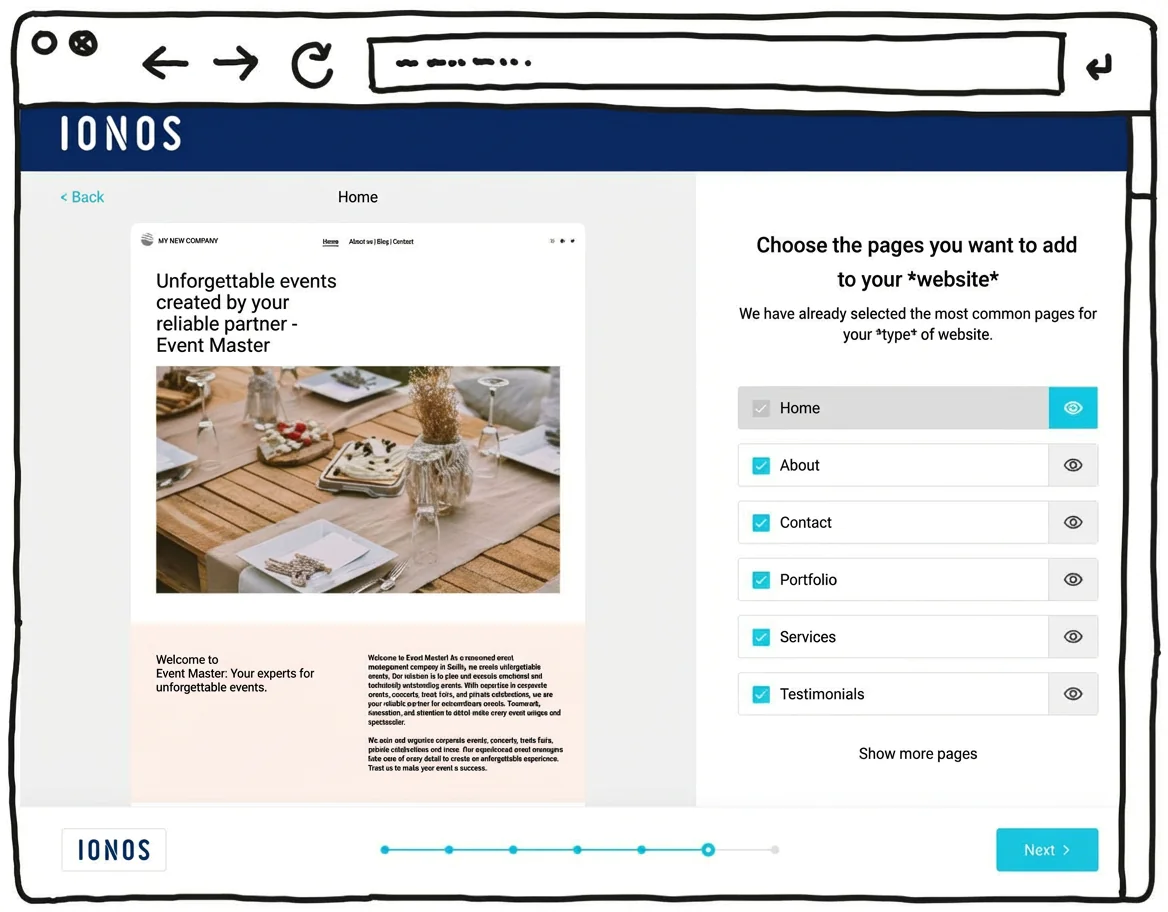
IONOS’s newer WordPress hosting aims to combine the simplicity of a website builder with the advantages of WordPress, the world’s most widely used website system. With its built-in AI setup, it can feel almost as easy as a website builder.
That can make it suitable for beginners who don’t have much experience building websites. The setup assistant guides you step by step through installing WordPress and suggests a practical selection of themes and plugins.
One key difference here is the built-in AI assistant, which can generate an initial WordPress website for you. It helps you take care of the most important settings quickly and find a suitable template. Automatic updates and daily backups can also provide extra peace of mind.
Another plus is customer support, available 24/7, including phone support rather than relying only on chat or email.
Pricing for IONOS WordPress hosting starts at around £1 per month for the first six months, then around £5 per month afterwards. A domain and an email mailbox are included in this price.
Pros of IONOS WordPress hosting
- WordPress installed securely in one click
- AI assistant for building your website
- A professional-looking design within minutes
- Designs well optimised for mobile phones
- All the benefits of WordPress as the world’s most widely used website CMS
- Flexible to extend with plugins
- Blogs or online shops possible
- Switching hosting provider later is possible
Cons of IONOS WordPress hosting
- Less design freedom than drag-and-drop website builders
- The wide range of features can still feel overwhelming for beginners, despite the guided setup
Pricing
- “Start” plan: from £3/month for the first 6 months, then £5/month
- “Grow” plan: from £1/month for the first 6 months, then £10/month
- All plans include your own domain and an email address
Here you can find our detailed IONOS WordPress hosting review.
IONOS (8.5 of 10): best value website builder
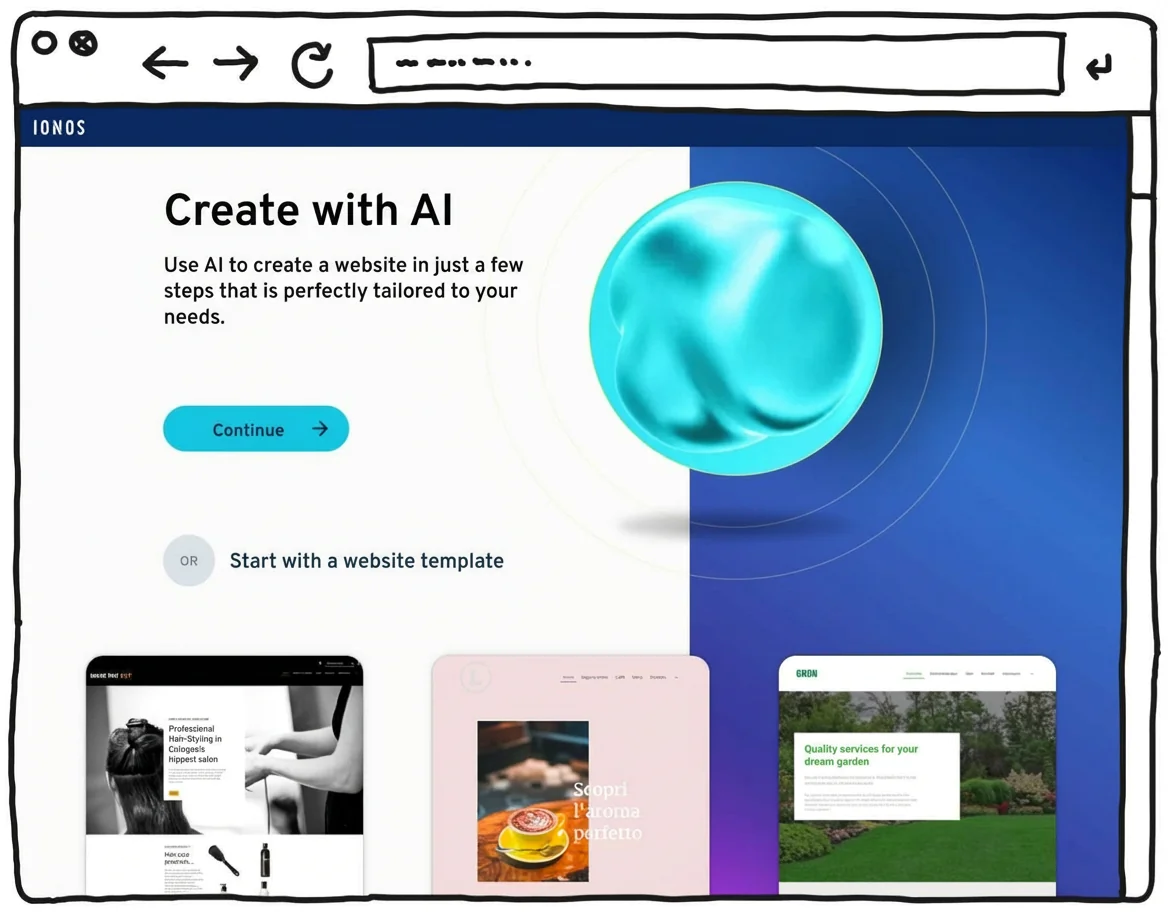
With IONOS “MyWebsite”, even beginners with no prior technical knowledge can easily create professional-looking websites in no time at all.
This is possible thanks to the clear operation and the support of convenient AI functionalities.
If you don’t want to use AI texts and images, you should prepare this content and have it ready when you create your website.
The comparatively low costs are a big plus point.
IONOS “MyWebsite” also impresses with its high level of data protection and German support. The only major drawback is that the “MyWebsite” system is not suitable for complex websites.
Best for:
- Individual entrepreneurs such as coaches or brokers
- Local companies such as craft businesses or medical practices
- Anyone who wants to create a simple website without any prior technical knowledge
What I liked most:
- Setting up and editing is easy and straightforward
- The AI assistant is a great help when creating the website and filling it with content (text and images)
- Legal certainty thanks to server location in Germany (keyword: GDPR)
- Tariffs are affordable
- Email address and domains are included in the tariff
What could be better:
- Designs/templates could have more creativity and quality
- For complex websites you should choose another provider
Find out more in my IONOS/1&1 website builder review and test report.
Start with IONOS MyWebsite
IONOS offers various website plans starting at just 1£/month for the first 6 months.
Webador (7.9 of 10): simple and affordable
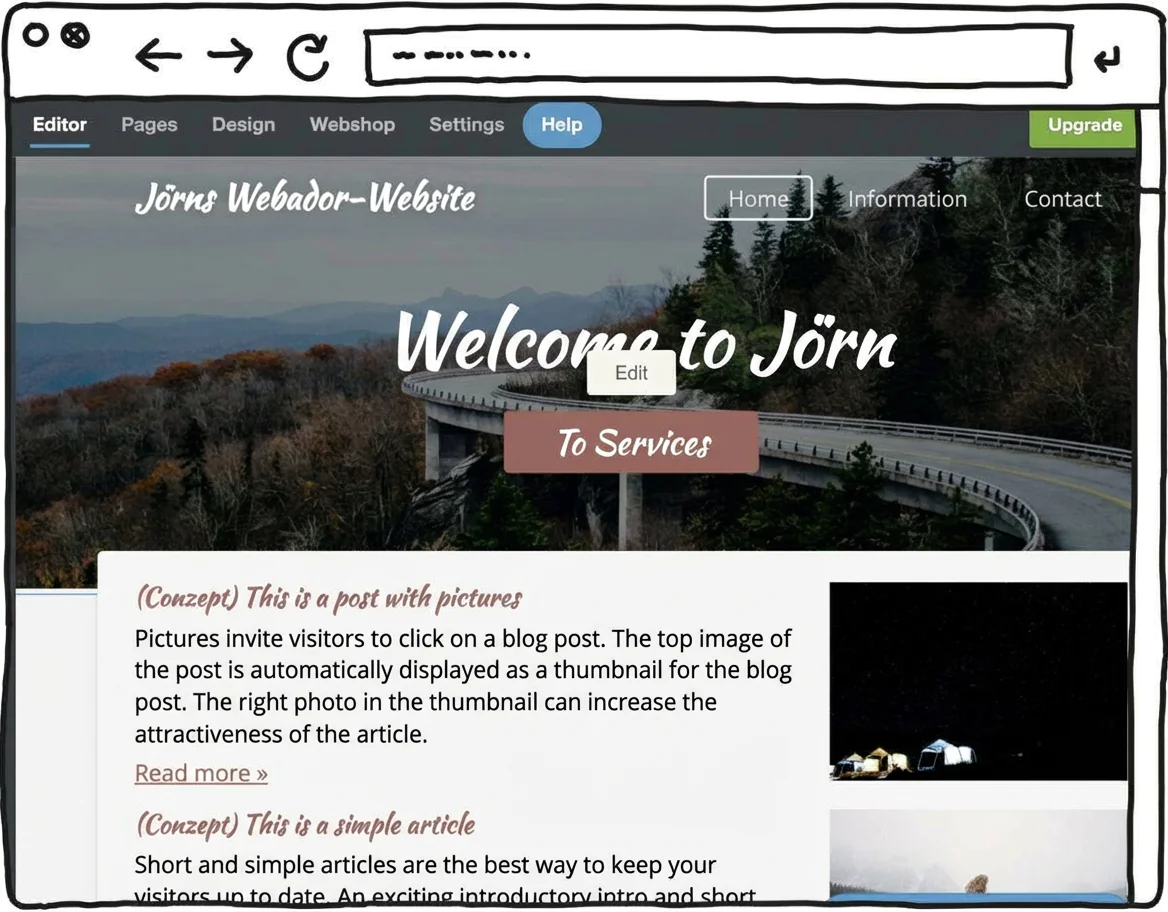
Another low-cost alternative is Webador. It’s a fairly minimalist website builder, but that simplicity can save you a noticeable amount of money compared to many other tools.
One standout feature is that you can try the paid Pro plan free for three months. That’s a longer trial period than you typically get with other website builders.
The provider, based in the Netherlands, focuses on helping beginners build affordable websites.
As a result, the feature set is relatively limited — but the editor is genuinely simple and intuitive to use.
Another positive point: according to the company, its servers run on 100% renewable energy. In theory, that means your website could be operated in a climate-neutral way.
It’s also worth noting that Webador, as a Dutch provider, hosts its servers in the EU. That can be helpful from a legal and data-protection perspective.
With this minimalist builder, you can create simple websites and small online shops that don’t require extensive customisation or personalisation.
As with many competitors, Webador’s free plan is best for testing. You don’t get your own domain, and Webador places a banner advert on your site.
Costs of Webador:
- Webador Free: permanently free, no custom domain, Webador banner on the site
- Webador Pro: includes a custom domain and email inbox, plus an online shop, from about £8.50 per month (3 months free trial)
Best low-cost website tools:
-
1 Winner 2026

Test score
9.4
2026
Outstanding
Pros and Cons
- WordPress securely installed with 1 click
- Control over functions and data
- Huge range of extensions and designs
- Automatic updates and backups
- Using WordPress is more complicated than a website builder
Visit sitePricing
- IONOS WordPress
- Fast server hardware
- Incl. domain & email addresses
- From £1 / month
- 30 days money back
-
2 Ideal for beginners

Test score
8.5
2026
Excellent
Pros and Cons
- Very easy to set up
- Best results for simple websites
- AI assistant facilitates creation
- Image database with 17,000 photos
- Email inbox included in the tariff
- Rather not ideal for more complex websites
- Other providers offer more choice in design templates
Visit sitePricing
- IONOS MyWebsite Now
- Free from advertisements
- With your own domain & email
- from 1£ / month
-
3 Best value for money

Test score
7.9
2026
Very good
Pros and Cons
- Very simple and beginner-friendly creation
- Designs optimised for mobile devices
- Free support
- Attractive Pro tariffs
- Selection of design templates is limited
- Functionality not as extensive in comparison (no app store)
Visit sitePricing
- Webador Free
- Permanently free of charge
- No own domain
- Webador banner on the page
- Webador Pro
- Incl. domain and email inbox
- Incl. online shop
- from £8.50 / month
- Test 3 months free of charge
-
4 Very easy to set up

Test score
7.3
2026
Very good
Pros and Cons
- Website wizard that gets your page up and running in just a few minutes
- Attractive & mobile-optimised designs
- Functions rather limited to basics
- Few possibilities for extension
Visit sitePricing
- JIMDO Free
- Permanently free of charge
- Jimdo branding
- No own domain
- JIMDO Premium
- Advertising free
- With your own domain
- from 9,00£ / month
-
5 Most flexible solution

Test score
7
2026
Very good
Pros and Cons
- Website builder with the greatest design freedom
- 800+ high-quality designs, 300+ app extensions
- AI assistant for website and content
- Several image databases integrated
- Range of functions can be overwhelming at first
- Email addresses only via Google Workspace (costs extra)
Visit sitePricing
- WIX Free
- Permanently free of charge
- Wix.com branding
- No own domain
- WIX Premium
- Advertising free
- With your own domain
- from £7.50 / month
- Test 14 days free of charge
-
6 Great design templates

Test score
6.8
2026
Good
Pros and Cons
- Particularly stylish & mobile-optimised design templates
- Templates for every industry
- Integrated marketing and analysis tools
- Access to over 40 million images
- Comparatively few add-ons (or cost extra)
- Email inbox costs extra (via Google Workspace)
Visit sitePricing
- Squarespace Personal
- With your own domain
- from 11,00£ / month
- Test 14 days free of charge
Cost comparison:
Here you’ll find a complete overview of website costs and the key features of the website builders we tested. The top-rated tool is also one of the most affordable ones.
| WordPress by IONOS | IONOS MyWebsite | Jimdo | Webador | WIX | Squarespace | |
|---|---|---|---|---|---|---|
| Rating | 9.4 of 10 | 8.5 of 10 | 7.3 of 10 | 7.9 of 10 | 7 of 10 | 6.8 of 10 |
| Monthly base price | Plan “Start” — from about £4.50 per month | Plan “Starter” — from about £10 per month | Plan “Start” — from about £9 per month | Plan “Lite” — from about £4 per month | Plan “Start” — from about £12 per month | Plan “Personal” — from about £9 per month |
| Discount | £2.50 per month for 6 months | £5 per month for 6 months | No discount | Free for 6 months | No discount | No discount |
| Free trial | 30-day money-back guarantee | 30-day money-back guarantee | Free plan available indefinitely | Free plan available indefinitely | Free plan available indefinitely | 14-day free trial |
| Domain | ✅ Free for 1 year | ✅ Free for 1 year | ✅ Free for 1 year | ✅ Included | ✅ Free for 1 year | ✅ Free for 1 year |
| Email inbox | ✅ Included | ✅ Included | ✅ Included | ❌ Upgrade required | ❌ Via external provider | ❌ Via external provider |
| SSL | ✅ Included | ✅ Included | ✅ Included | ✅ Included | ✅ Included | ✅ Included |
| Storage | 25 GB | 10 GB | 5 GB | Unlimited | 2 GB | Unlimited |
| Subpages | ✅ Unlimited | max. 10 | max. 10 | ✅ Unlimited | ✅ Unlimited | ✅ Up to 1,000 |
| Online shop | Upgrade recommended (from about £18 per month) | Upgrade required (from about £20 per month) | Upgrade required (from about £16 per month) | Upgrade required (from about £7.50 per month) | Upgrade required (from about £24 per month) | Upgrade required (from about £16 per month) |
| Newsletter | ✅ Free extensions available | ❌ Via external tool | ❌ Via external tool | ❌ Via external tool | ✅ Included | Upgrade required (from about £15 per month) |
| Possible additional costs | External premium themes and plugins | Upgrades for extra features, external tools | Upgrades for extra features, external tools | Upgrades for extra features, external tools | Upgrades for extra features, external tools | Upgrades for extra features, external tools |
| Review | IONOS WordPress review | IONOS MyWebsite review | Jimdo review | Webador review | Wix review | Squarespace review |
Which tools have the cheapest plans?
Option 1: Use WordPress for more complex sites
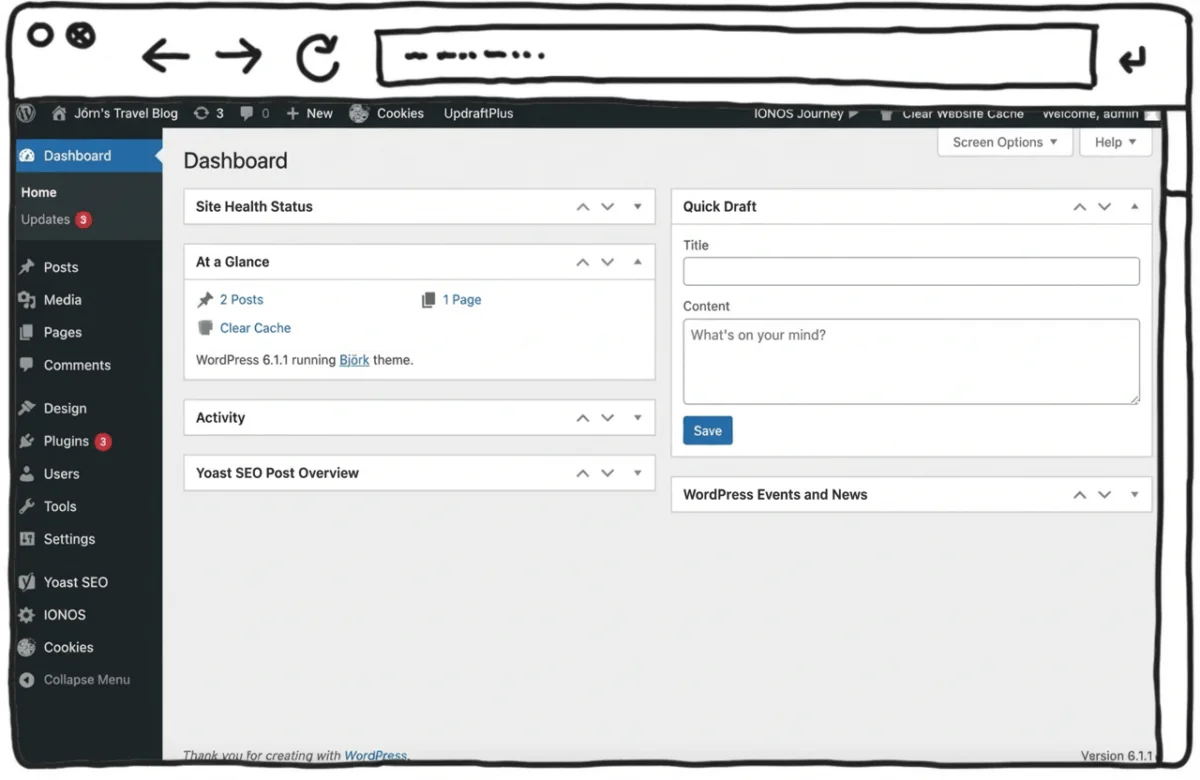
A large number of websites worldwide are built using the content management system (CMS) WordPress. WebsiteWissen.com is also based on this widely used platform.
In principle, WordPress allows you to build a low-cost website yourself. However, to really benefit from its many design and extension options, you need a solid understanding of how the system works.
For this reason, WordPress is best suited to professional blogs or more complex projects. For a simple online presence, the CMS is often more extensive than necessary. Another point to consider is hosting — your website needs to be hosted separately, ideally with a budget-friendly hosting provider.
That’s why beginners are usually better off choosing an affordable website builder. If you do want to use WordPress to create a low-cost website, a dedicated WordPress hosting plan is a practical option.
This allows you to run your own WordPress installation without having to manage hosting setup or domain configuration yourself.
With a relatively affordable option such as IONOS WordPress Hosting, WordPress is available with its full feature set. You can use themes, widgets and plugins without major restrictions.
Backups and updates are handled automatically by the host, which reduces maintenance effort. Hosting within the EU can also be an advantage for users who value clear data protection standards.
Advantages of IONOS WordPress:
- No functional limitations — full, standard WordPress
- Low-cost website with domain and custom email address
- Automatic backups and updates included
Disadvantages of IONOS WordPress:
- No free plan and no trial period
- Website builders are generally easier to use
Costs of IONOS WordPress:
- From around £1 per month in the first year, then approximately £8 per month thereafter
Option 2: Get a low-cost website built for you
Of course, you can also have your website created for you. This can be relatively affordable — but it’s usually more expensive than building it yourself using one of the methods above. If you’re asking, “Who can build me a cheap website?”, there are several options. Often, the most straightforward route is hiring a local web designer or freelance professional. Alternatively, you can use online service providers that offer website creation at fixed or competitive rates.
Having a website built can cost a few hundred pounds — but it can also run into several thousand, depending on what you need. Choosing an affordable service provider matters, but pricing also depends heavily on how well prepared you are.
Think in advance about what kind of budget website you want and what you need it to do. It also helps to prepare your text content and high-quality images beforehand. This can significantly reduce the time a designer needs — and keep overall costs lower.

Have you already found a suitable website tool? Great — you’re off to a strong start. Now let’s tackle the planning of your low-cost website.
Create a sitemap
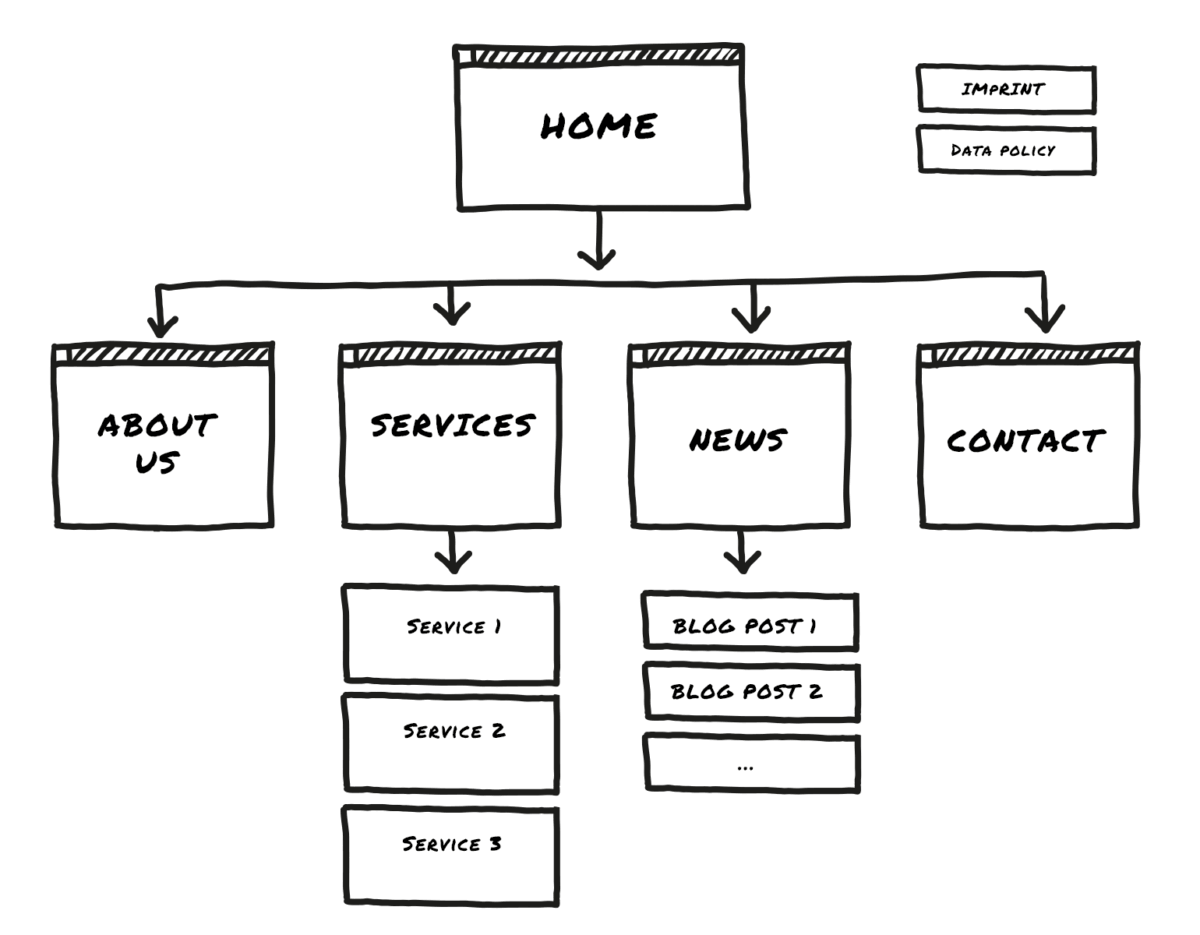
Before you start designing your website, blog or online shop, it helps to create a rough plan of your site structure.
If you decide in advance which content should go where, you’ll usually reach your goal faster.
The easiest way to visualise your structure is with a sitemap. You can sketch it on a piece of paper — or create it on your computer if you prefer.
A simple, budget-friendly website can roughly follow this structure:
- Level 1: Home page
- Level 2: 5 to 7 main menu items (for example, “About”)
- Level 3: Detail pages (for more in-depth information, such as product pages)
In my experience, further levels aren’t necessary for most simple websites or smaller online shops.
Keep your sitemap — you’ll use it as a blueprint when you build the navigation and pages in your chosen website builder.
If you want more guidance on how to distribute content and features across your website, you’ll find additional ideas in a detailed planning guide.
Legal pages and required info
Website operators in the UK and EU typically need to meet certain privacy and transparency requirements, especially when collecting data or using tracking and marketing tools. In practice, that often means having a clear privacy notice and an appropriate cookie notice/banner. Depending on the site, you may also need a page with business details and contact information.
More tips on legal pages and privacy basics can be found in the guide “Website creation for beginners”.

Now that the theory is done, let’s move on to the practical part — designing your low-cost website.
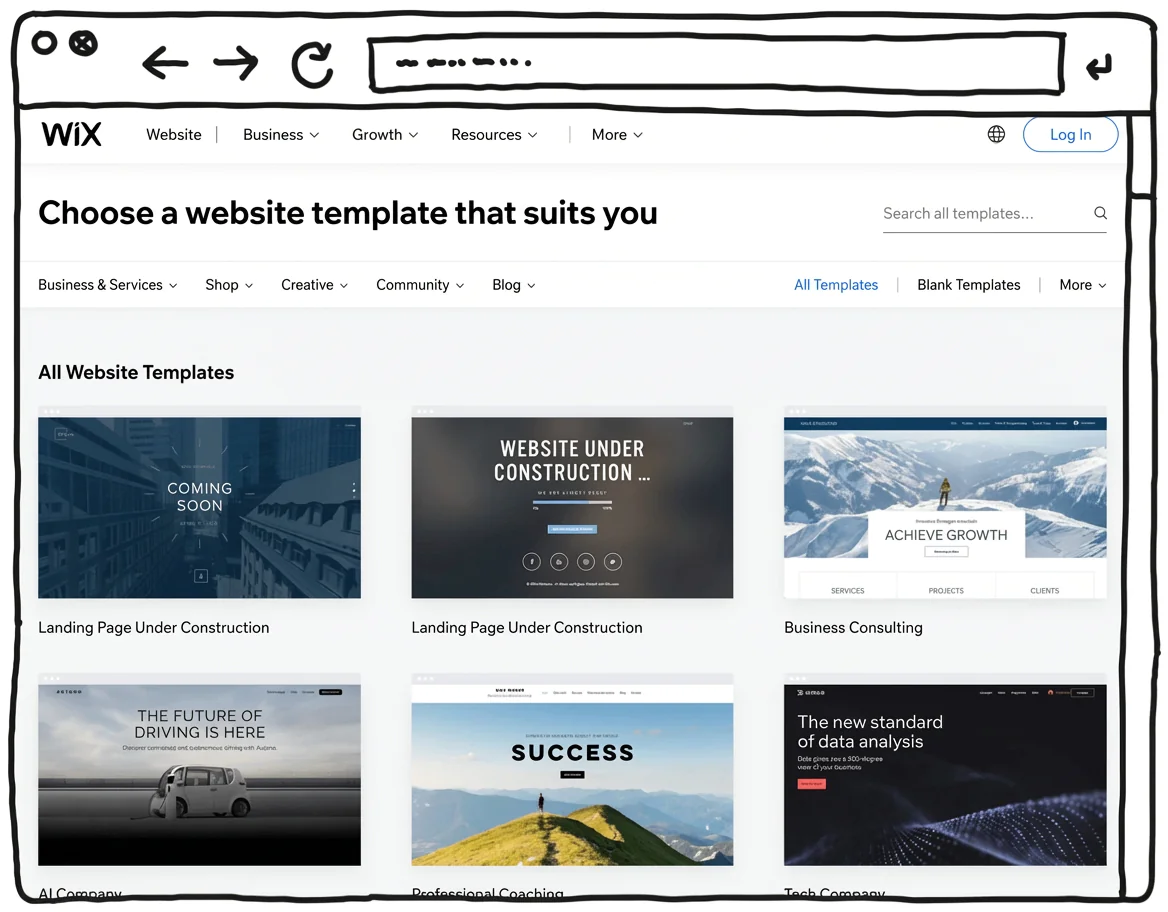
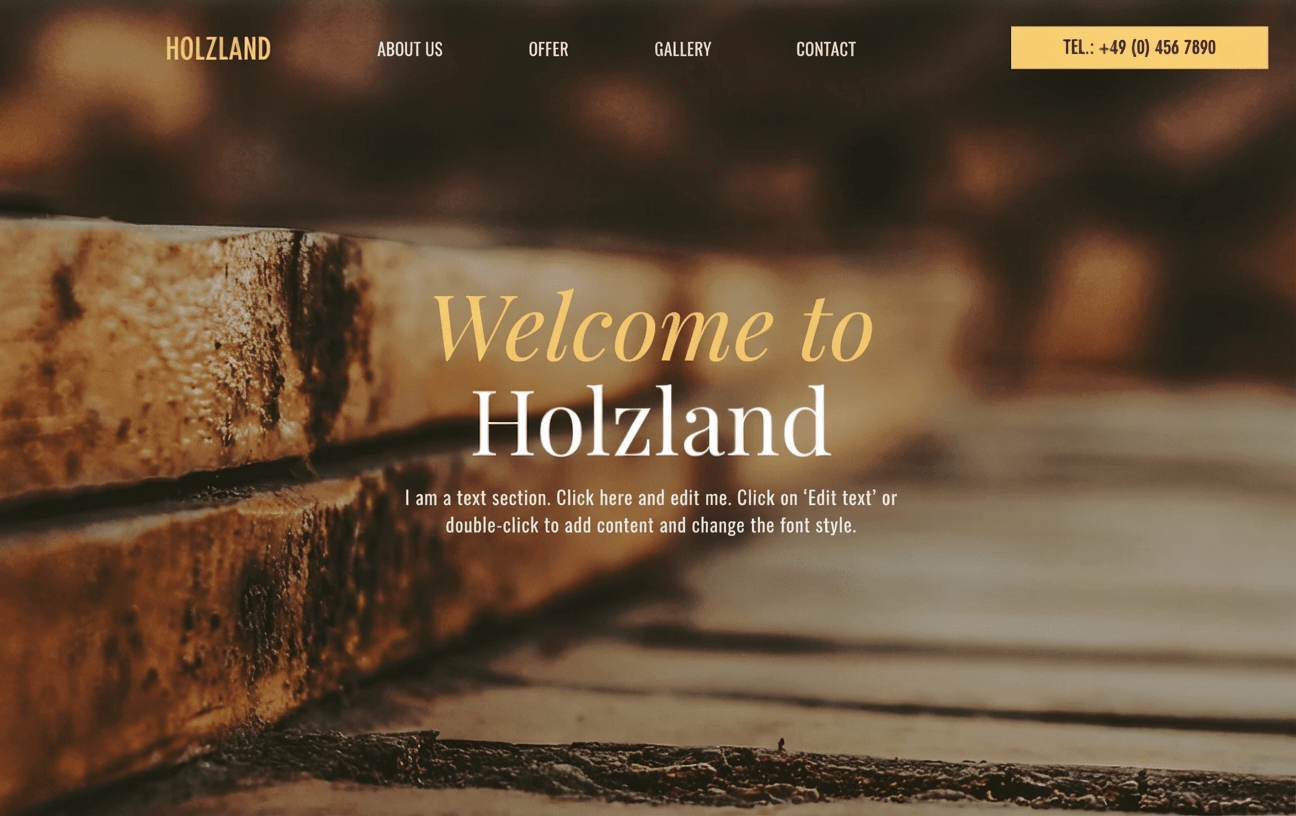
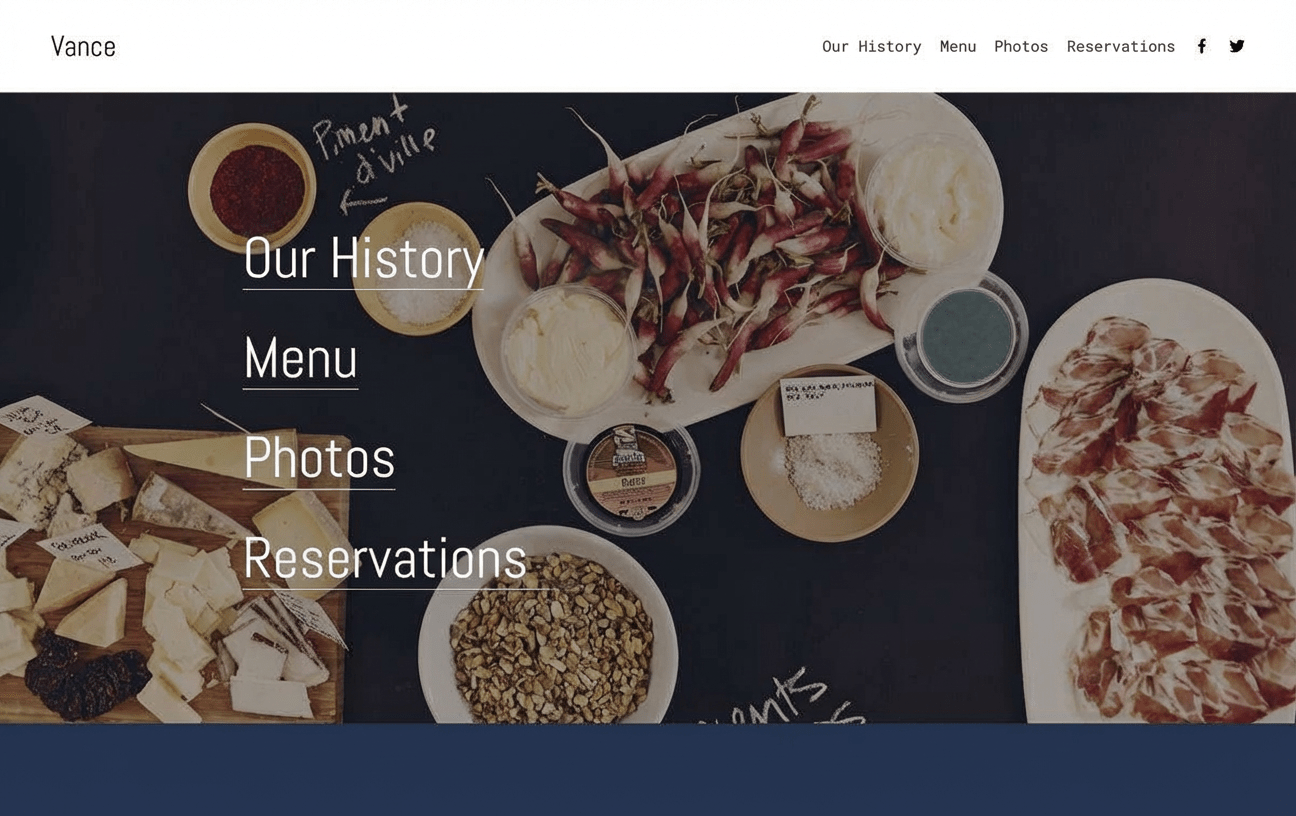
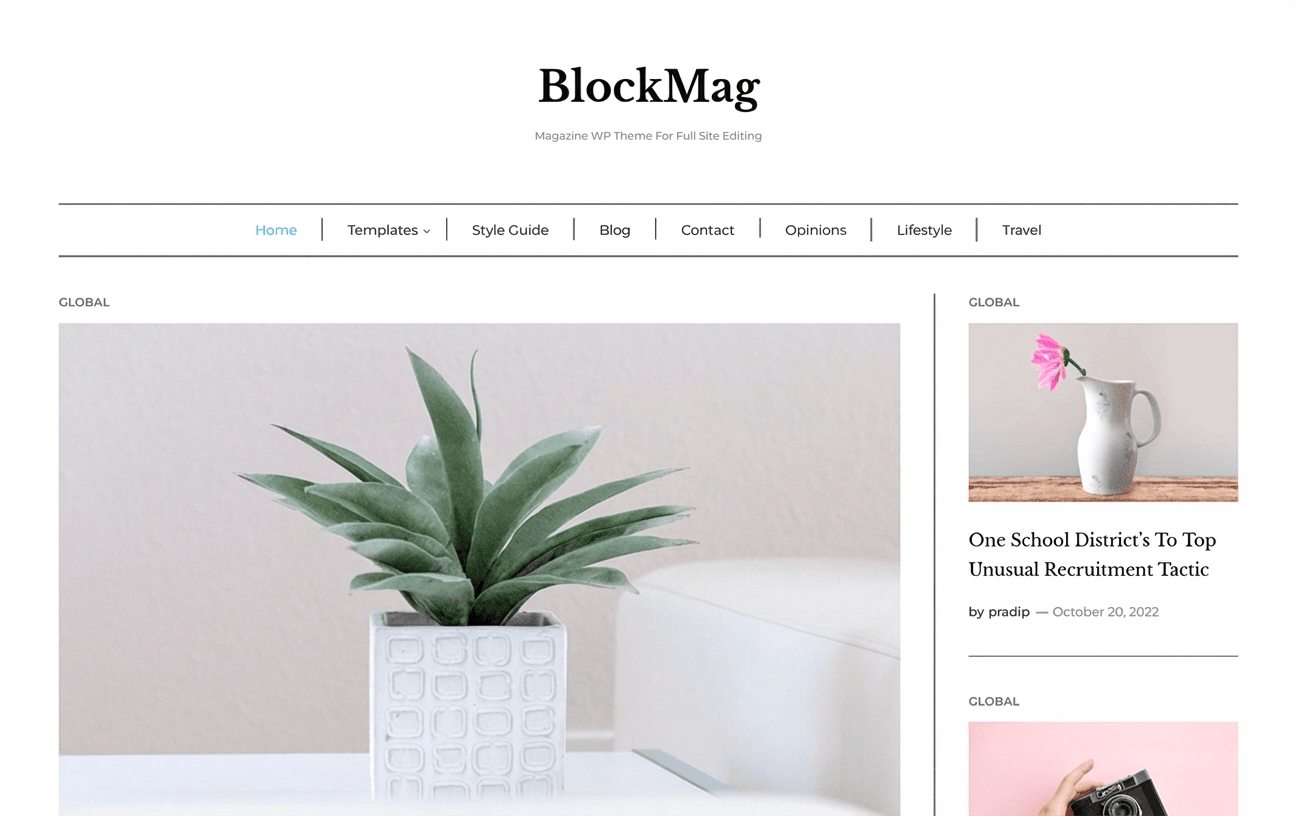
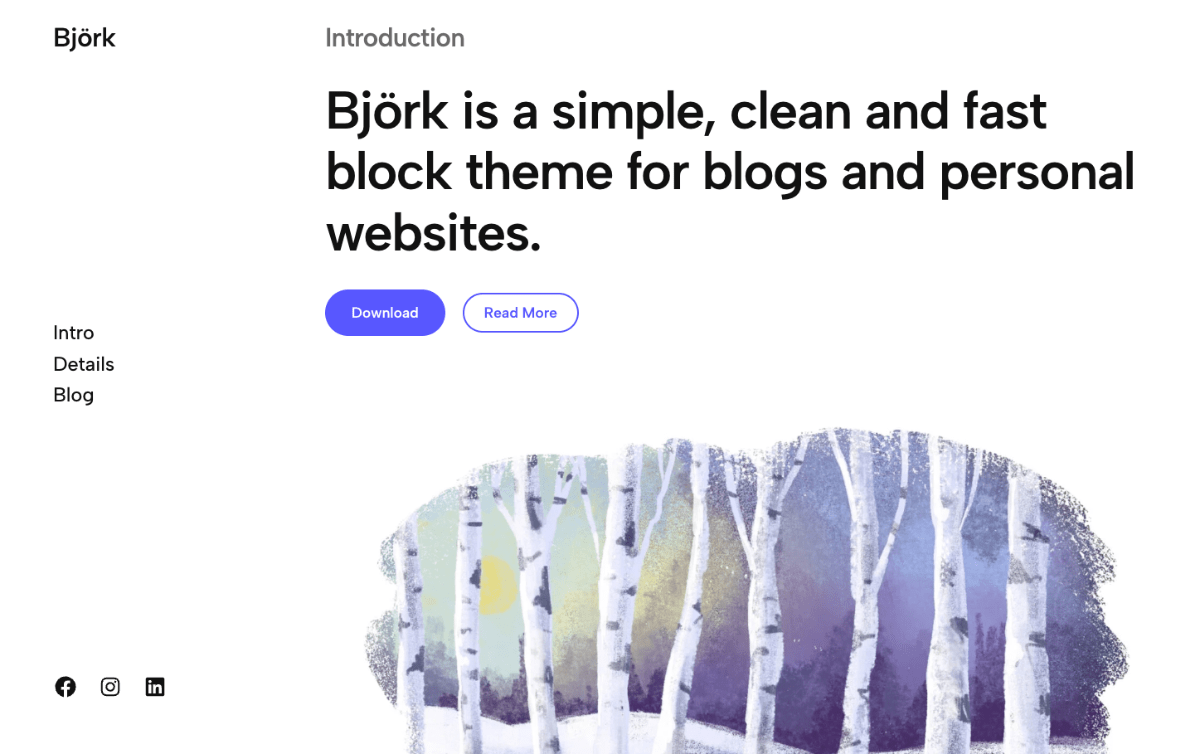
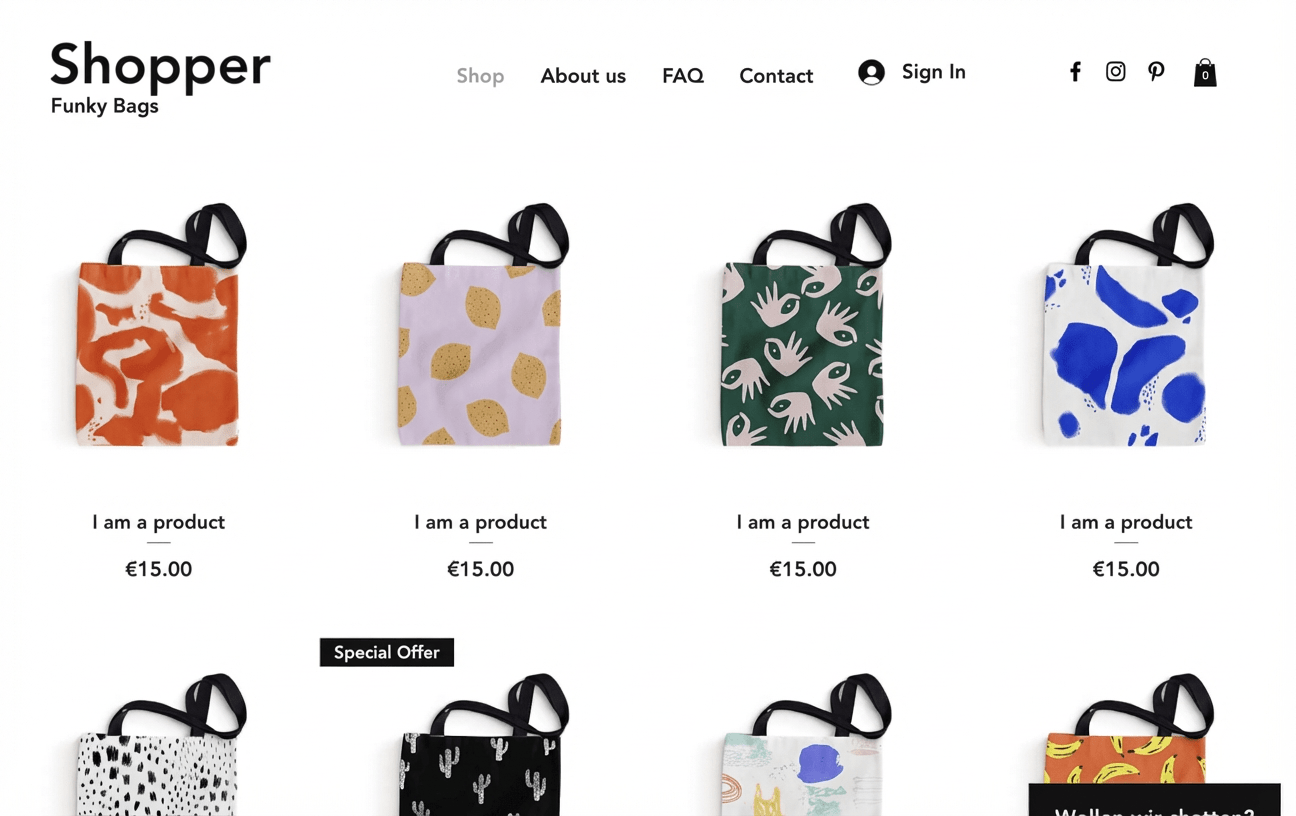
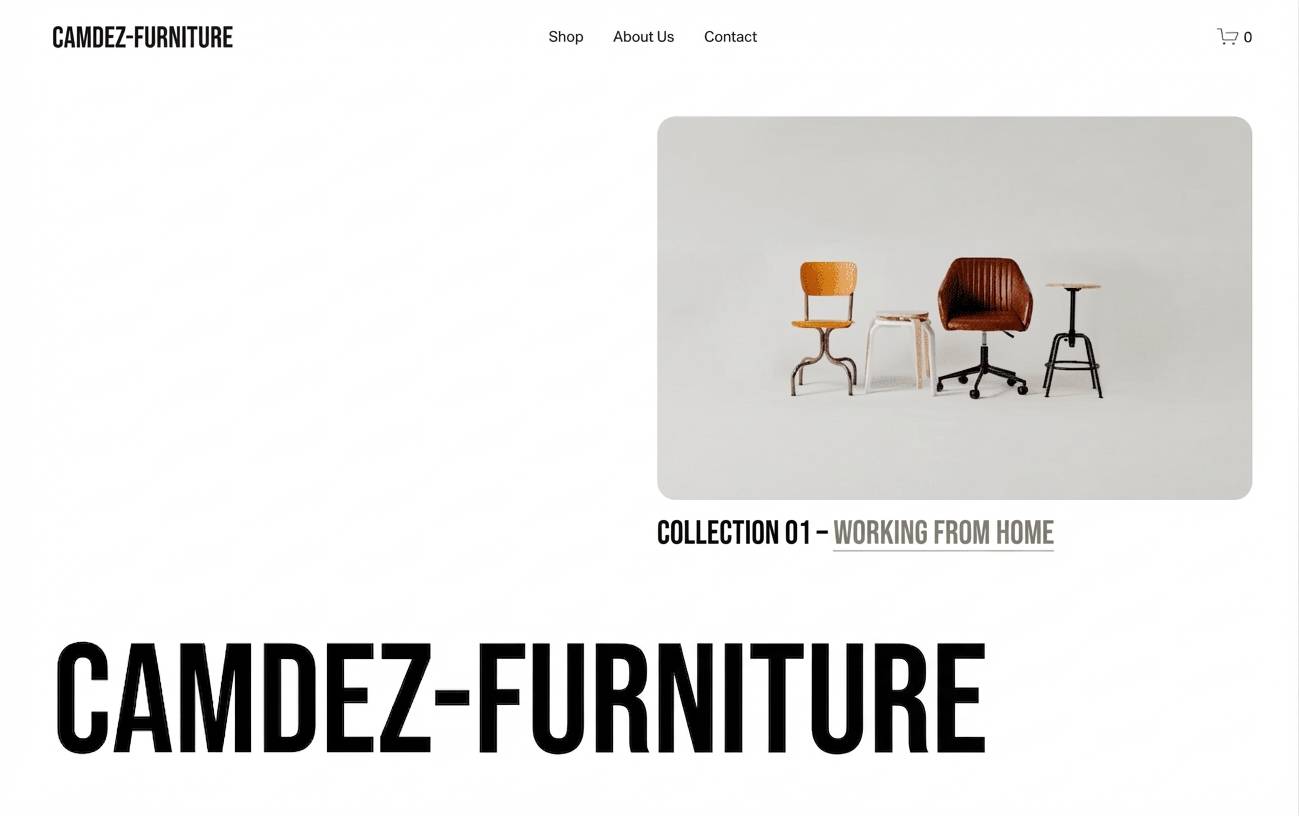
Website builders offer a wide selection of design templates for creating a budget-friendly site.
These templates — often called themes — are created by professional designers. They help ensure your website looks consistent across all pages.
But don’t worry: templates are varied and flexible. You can adapt them to your needs and preferences. For example, you can add images and a logo easily. With just a few clicks, you can also change colours and fonts.
If none of the templates feels like a perfect match right away, you can usually adjust it enough to fit your requirements.
Cheap doesn’t mean tacky: stylish templates
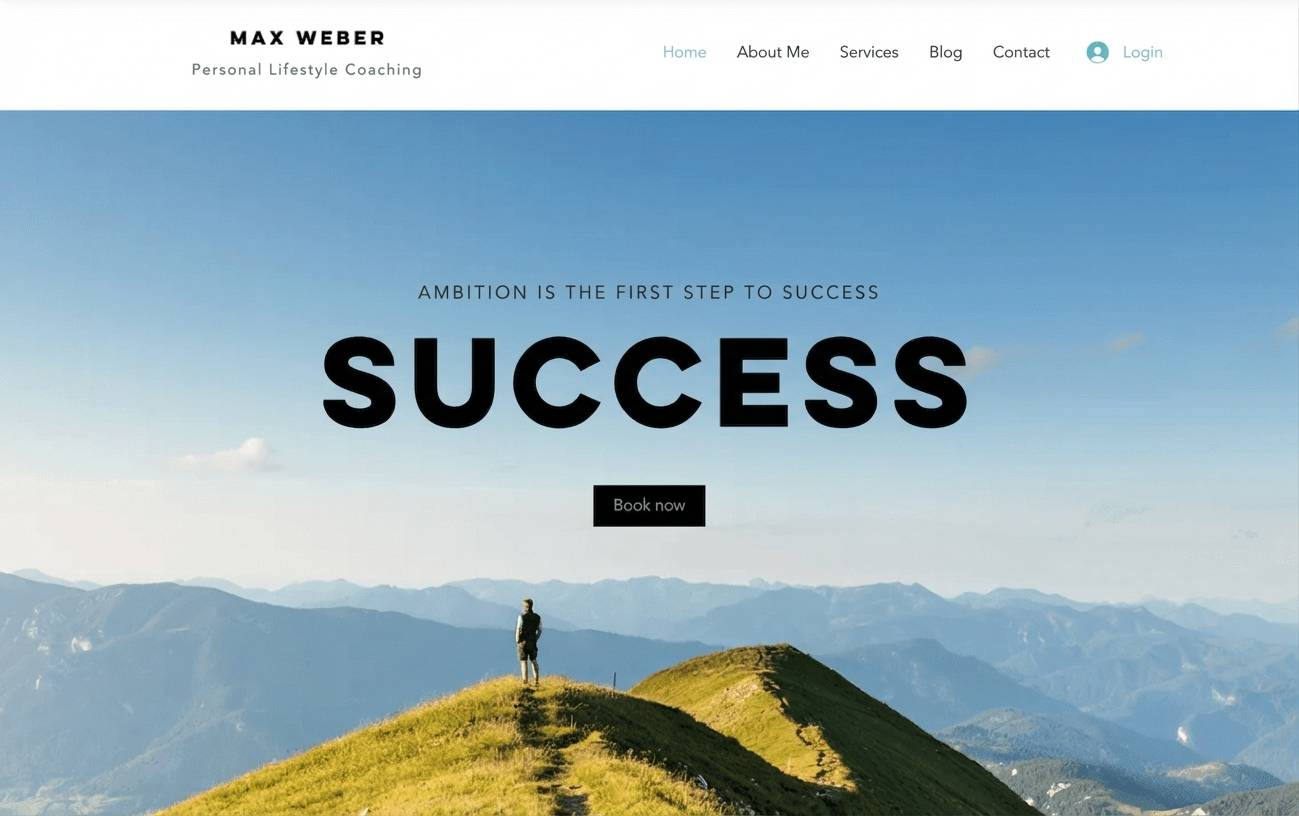

Customize your low-cost website
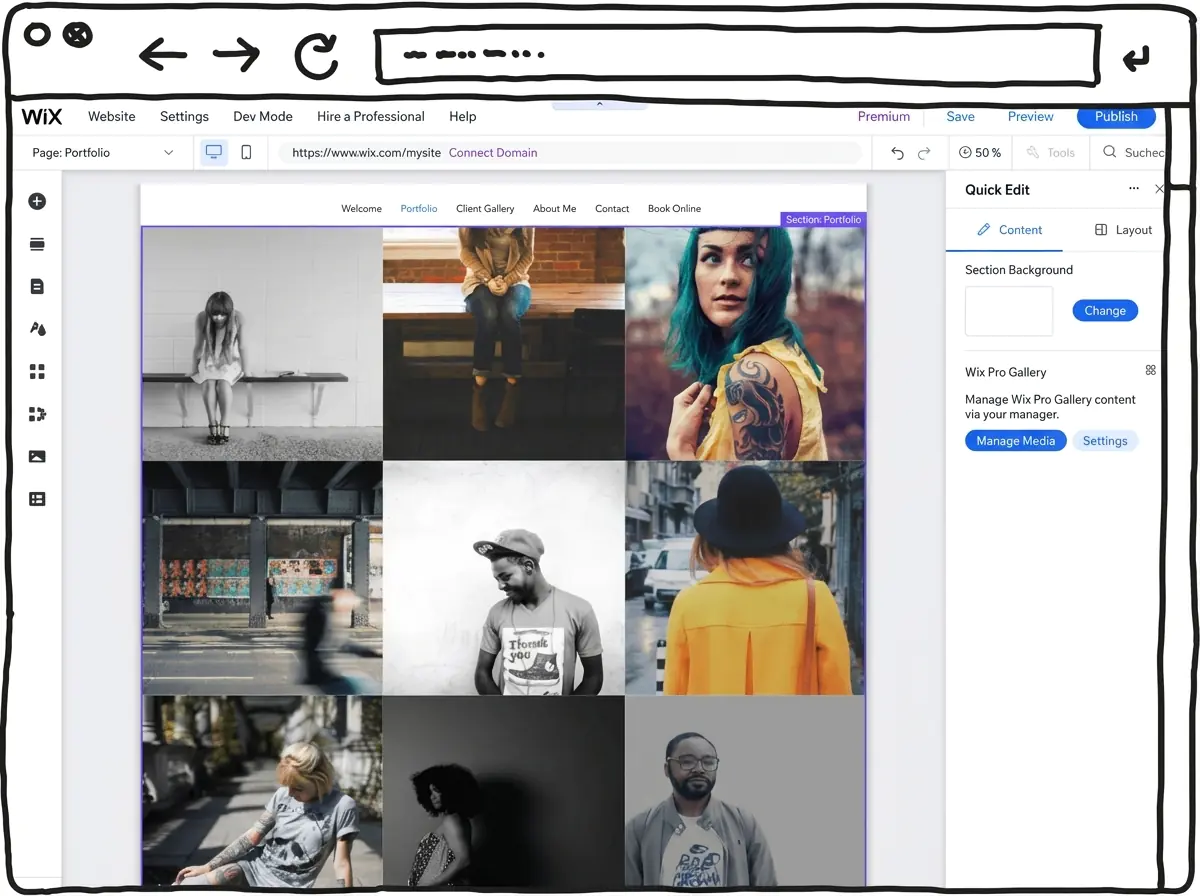
Now that you’ve found a theme you like, it’s time to customise the template for your cheap website.
With website builders such as Wix, a virtual assistant often guides you through the setup. After choosing a suitable template, you start building and editing your pages.
A good place to begin is your site structure. So, bring in the sitemap you prepared earlier. Using it as a blueprint, add pages such as “About us”.
Next, place your images and text into the relevant sections. Save your progress regularly and check the preview as you go. One important note: the mobile view for smartphones and tablets sometimes needs separate adjustments, especially when it comes to layout and certain functions.
I explain the best way to adapt templates in more detail in a dedicated chapter of my website creation guide.
Exciting moment: your low-cost website is about to go live
You’re nearly there — in a few moments you can publish your website by clicking the “Publish” button in your website builder.
Before you do, there are a few final steps that are important for a smooth launch. So give yourself a couple more minutes.
From experience, a final check is well worth it. Your website should work reliably and look inviting.
Launch checklist:
- Functions: Check that everything works. Click through your site and test interactive elements such as a newsletter sign-up form.
- Display: Does the site load correctly? Test it in the main browsers and on your phone.
- Layout: Do text and images look right? It also helps to have friends or family take a final look with fresh eyes.
- Search engines: Have you completed the SEO settings in your builder? This helps ensure your low-cost website can be found under its domain.
Congratulations — your cheap website is online!
You’ve done it. You built and published your website on a budget, and that’s an achievement you can be proud of.
Are you happy with the result? Did this guide make the process clear? If you have feedback, suggestions or comments, feel free to leave a few lines in the comments section.
With a website builder, even beginners can create a low-cost website with their own domain. You simply choose an affordable website tool and follow the setup steps. If you have basic computer skills and feel comfortable using the internet, you usually don’t need to hire a professional. This is one of the easiest ways to get a website with a custom domain on a budget.
If you’d rather have a low-cost website built for you and want professional support, you can hire a local web designer or use an online platform to find freelancers. Some tools, such as Wix, also offer ways to work with a professional. You can reduce costs by deciding upfront what type of website you want — and by preparing your texts and images before the project starts.
Having a website built doesn’t have to be expensive. A simple website can sometimes be created by a professional designer for a few hundred pounds. Doing it yourself is usually cheaper, especially with the help of a low-cost website builder such as Wix. You can also use the savings to invest in better photos and well-written content.
If you want to build a low-cost website, both a website builder like Wix and a CMS like WordPress can work. For beginners, a website builder is usually the more straightforward option. For more complex web projects, WordPress is often a better fit — but it helps to be technically confident.
A budget website has a clear advantage: you can get online without spending a lot. With a cheap website and a custom domain, you can present yourself, your club, or your business. You can also create an online shop on a budget. A professionally designed website can make you look more credible to potential customers and help people take your offer more seriously.
With a low-cost website host, you can host your own website for just a few pounds per month. This is usually required if you want to run your own WordPress installation. To find a provider that offers good value, it’s best to research and compare options online.
A popular option is WordPress hosting from IONOS, where hosting — including a domain — can cost under £5 per month on entry-level plans. That said, beginners are often better off using a website builder such as Wix. With these tools, hosting and a domain are already included, which keeps setup simple and costs predictable.
You might also like
- Create a website in 2026: 5 simple steps Read article
- Build a budget website: cheapest tools & step-by-step guide (2026) Read article
- Create a coaching website: top tools, costs & tips (2026) Read article
- Create a hotel website: top tools, costs & tips (2026) Read article
- Create a photography website: top tools, costs & tips (2026) Read article
- Create a portfolio website: top tools, costs & tips (2026) Read article
- Create a website for doctors: top tools, costs & tips (2026) Read article
- Create a rental website: top tools, costs & tips (2026) Read article
- Create a restaurant website: top tools, costs & tips (2026) Read article
- Create a school website: top tools, costs & tips (2026) Read article
- Tradesman website: top tools, costs & tips (2026) Read article
- Create a wedding website: top tools, costs & tips (2026) Read article
Comments and ratings
Was this article helpful?
Rate article
Share article